
Tech
5 WhatsApp Privacy Settings Worth Checking Today
These five WhatsApp privacy settings help you control who sees your activity, views your profile photo, adds you to groups and interrupts you with calls.

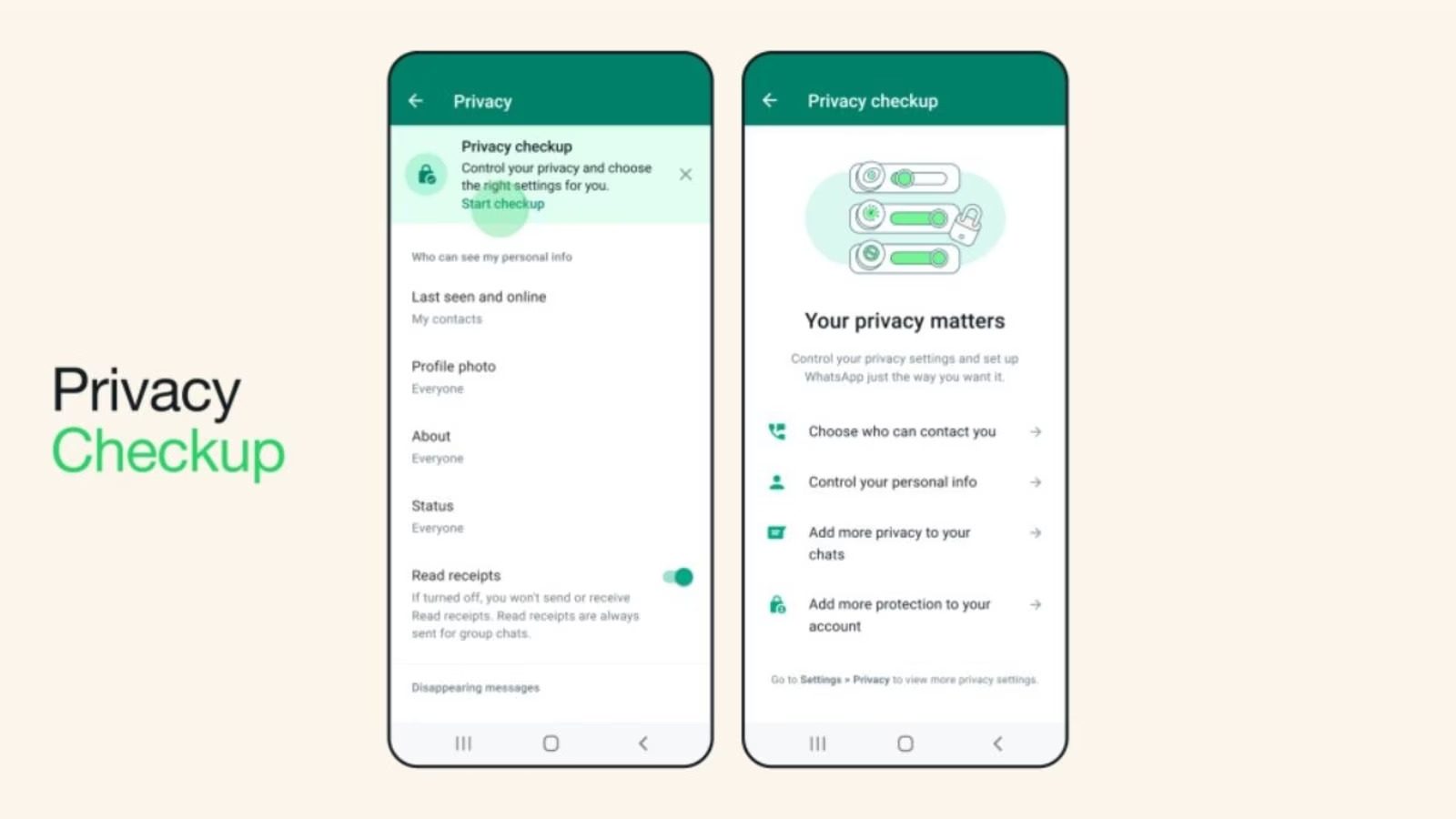
- These five WhatsApp privacy settings help you control who sees your activity, views your profile photo, adds you to groups and interrupts you with calls.

Your WhatsApp contact list may include family, colleagues, customers and people you have spoken to only once. They do not all need the same access to your personal information.
A quick review of your WhatsApp privacy settings can help you set clearer boundaries while keeping the app useful for everyday conversations.
Open WhatsApp’s Settings → Privacy to get started. On Android, you may first need to tap the three-dot menu. Menu wording can vary slightly between versions.
1. Last Seen and Online: Control who sees your activity
Open Privacy → Last seen and online and review both visibility controls.
Choose a narrower audience for your last-seen information, such as My contacts, or select Nobody if you prefer not to share it. Check the online visibility setting separately so it matches your preference.
This is useful if you would rather answer messages in your own time without displaying your activity. However, hiding your last-seen or online information also limits your ability to see that information about other users.
2. Profile Photo: Choose who can see your picture
Go to Privacy → Profile photo.
The available choices include Everyone, My contacts, My contacts except… and Nobody.
Choose My contacts if you want your picture visible only to saved contacts. Use My contacts except… when you want to exclude particular people without removing them from your address book.
For example, you might want to keep a contact for occasional business conversations while limiting their access to a personal photograph. Changing photo visibility does not block that person from messaging you.
3. Groups: Limit who can add you without asking
Open Privacy → Groups and review who can add you directly.
My contacts limits direct additions to people in your address book. My contacts except… lets you exclude selected contacts, including someone who repeatedly adds you to unwanted groups.
An administrator who cannot add you directly can still send a private invitation. You then decide whether to join; WhatsApp says these invitations expire after three days.
Make this change on your phone. WhatsApp says group privacy changes sync to Web and Desktop.
4. Silence Unknown Callers: Reduce unexpected interruptions
Under Privacy → Calls, look for Silence unknown callers.
When enabled, calls identified as unknown will not ring your phone. They remain visible in the call list, allowing you to review missed calls.
This can reduce interruptions from unfamiliar callers, but it does not block every unwanted contact or establish whether a caller is genuine. If you regularly receive first-time calls from customers, delivery riders or new contacts, remember to check your call history.
5. Read Receipts: Decide whether to share that you have read a message
Go to Privacy → Read receipts and switch the setting off if you prefer not to share read confirmations in individual chats.
The trade-off works both ways: you will also lose access to other people’s read receipts. Group chats still send read receipts, and switching this setting off also prevents you from seeing who viewed your status.
Treat it as a preference for everyday conversations, rather than a way to make all your WhatsApp activity invisible.






ADC appeals ruling that sacked David Mark, urges INEC to hold off
ADC appeals ruling that sacked David Mark and nullified Atiku Abubakar’s presidential nomination, urging INEC to hold off while the...


Kenyan Preacher Jailed 200 Years for Starving 190 Children to Death
Kenyan preacher Paul Mackenzie was sentenced to 200 years in prison for the Shakahola massacre, which left 190 children and...

5 WhatsApp Privacy Settings Worth Checking Today
These five WhatsApp privacy settings help you control who sees your activity, views your profile photo, adds you to groups...


Missing Abia Landlady Found Dead in Neighbour’s 30-Feet Soakaway
A missing landlady was found dead in a 30-foot soakaway pit in her neighbour’s compound in Abia after residents searched...

How to Reduce Mobile Data Usage Without Deleting Your Favourite Apps
Learn how to reduce mobile data usage with simple Android, iPhone and app settings that help your bundle last longer...


Selected but Not Paid? What to Check About Your NERSI Payment
Still waiting for your NERSI payment after receiving a selection message? Check your acceptance status, registered SIM and wallet before...


‘We will be on the ballot’ — Atiku vows to stay in 2027 presidential race after ADC ruling
Atiku vows to stay in the 2027 presidential race after a court ruling affected the ADC’s leadership and his joint...


Jobs, Food Security Top Lagos Economic Plan for 2027 — See Seven Priorities
The Lagos economic plan for 2027 targets jobs, food security, infrastructure and business growth, with seven priorities outlined by the...


‘No Ceasefire’ — Military Speaks On Deal With Boko Haram
The Nigerian military has denied a Boko Haram ceasefire agreement, saying operations against the group, ISWAP and other armed gangs...


NNPC IPO: Oil Giant Eyes Up to 10% Share Sale, Considers London and New York Listings
The proposed NNPC IPO could offer investors between 5% and 10% of the company’s shares, with preparations potentially lasting throughout...